WCWS Voice: Free AI Dictation for Mac With Local Whisper, Deepgram Streaming
Back to Blog

WCWS Voice: Free AI Dictation for Mac With Local Whisper, Deepgram Streaming

May 5, 202632 min read0 comments

Introduction: Your Keyboard Has Been Working OvertimeThere is a particular kind of modern exhaustion that comes from typing the same thought three different way...

Introduction: Your Keyboard Has Been Working Overtime

There is a particular kind of modern exhaustion that comes from typing the same thought three different ways, deleting it twice, rewriting it once, then realizing the first version was probably fine.

This is the quiet tax of digital work. It is not dramatic. No one makes inspirational documentaries about someone answering emails with tight wrists and a mild spiritual crisis. But almost every knowledge worker knows the feeling. You have the sentence in your head. It is already formed. It is sitting there, fully dressed, shoes on, ready to leave the house. Then your fingers get involved, and suddenly the sentence has lost its keys.

WCWS Voice is built for that exact moment.

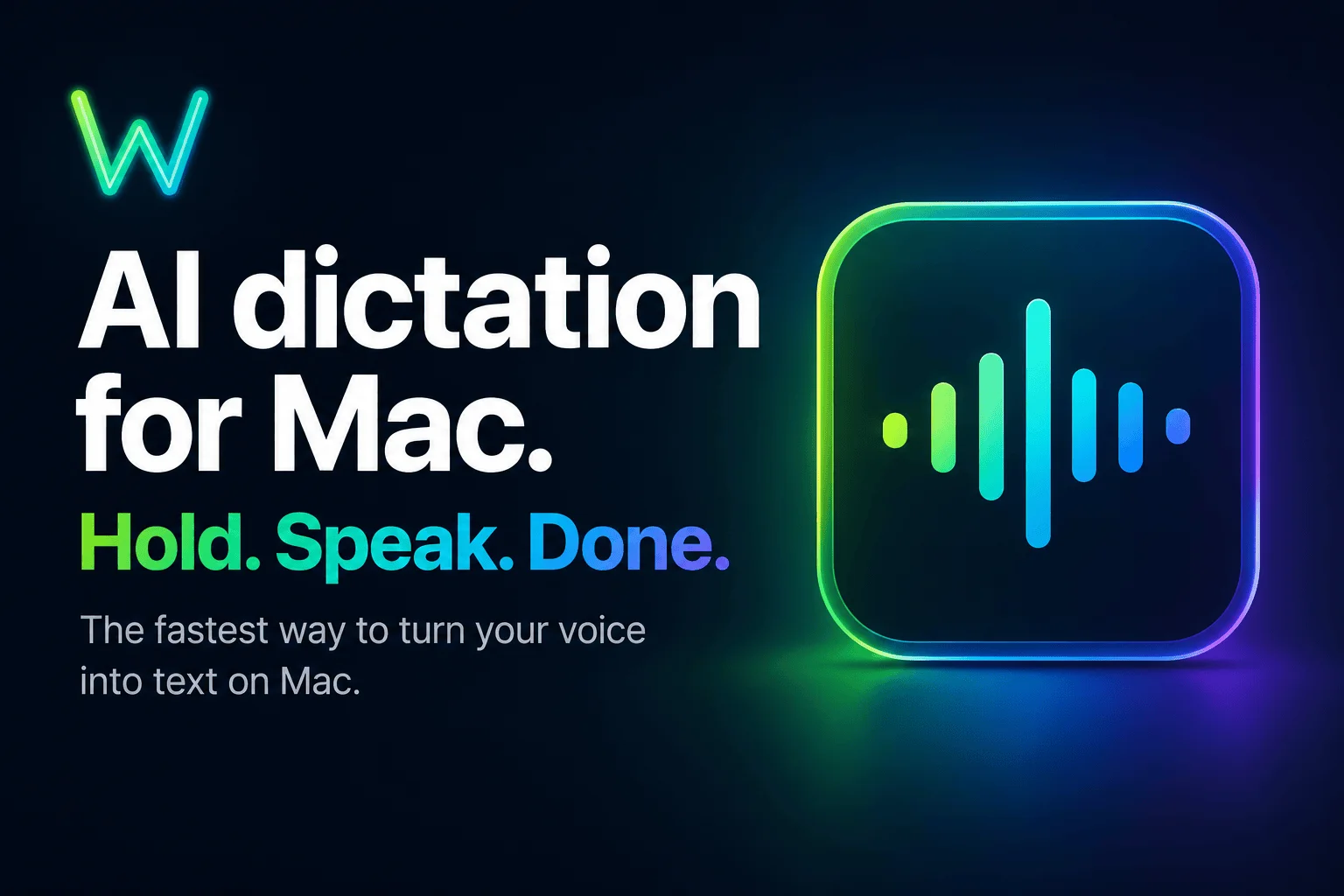
It is an AI dictation app for Mac with a refreshingly simple promise: hold your hotkey, speak, release, and your words appear exactly where your cursor is. Not in a separate window. Not trapped inside some mysterious floating panel that looks like it was designed by a committee of sleep-deprived staplers. Right where you were typing.

Hold. Speak. Done.

That is the whole magic trick, and frankly, it is a good trick.

WCWS Voice is free, fast, private, and built specifically for macOS. It supports Local Whisper for on-device dictation, Deepgram streaming for fast cloud transcription, and an optional AI refinement layer through OpenRouter or local Ollama. It includes push-to-talk hotkeys, rules and snippets, audio ducking, accent correction, and a bottom-of-screen orb that shows your mic level while you speak.

In other words, it is not trying to become your entire productivity operating system. It is not asking you to join a movement. It is not promising to change your life before lunch. It is doing something far more useful: helping you get words out of your head and into the app you are already using.

For a certain kind of Mac user, that may be exactly enough.

What Is WCWS Voice?

WCWS Voice is a free AI dictation app for macOS that lets you speak text into any app using a push-to-talk hotkey. You press and hold a key, speak naturally, release the key, and WCWS Voice transcribes your speech, optionally refines it with AI, and pastes it wherever your cursor is.

That last part matters.

Many dictation tools make you work around them. They open a box. They require you to start a session. They make you copy and paste. They behave like a houseguest who technically helps with dinner but somehow uses every pan in the kitchen. WCWS Voice takes the opposite approach. It fits into the workflow you already have.

Writing an email? Speak into the email.

Commenting in Slack? Speak into Slack.

Writing documentation? Speak directly into the editor.

Answering a customer? Speak into the help desk.

Drafting code comments? Speak into your IDE.

Filling out forms? Speak into the field.

The product is described as an AI dictation app for Mac, but the real value is less about the label and more about the rhythm. It removes the awkward gap between thought and text. You do not need to change tabs, open another tool, or perform the sacred copy-paste ritual. You just hold the hotkey, say what you mean, and release.

The app is currently listed as version 0.2.0. It is a small universal download for Intel and Apple Silicon Macs, about 14 MB, and requires macOS 14 or later. It requires no account. It is free forever according to the product page. That combination alone is enough to make many Mac users raise an eyebrow, because free software that is also private and useful can feel like spotting a unicorn ordering a sensible lunch.

But WCWS Voice is not just a toy dictation button. It offers three transcription and refinement paths depending on how you like to work:

  1. Local Whisper for private, offline dictation on your Mac.

  2. Deepgram Nova-3 for fast, streaming, multilingual cloud transcription using your own API key.

  3. AI refinement through OpenRouter or local Ollama to clean grammar, format text, expand abbreviations, and follow custom style rules.

That gives users a meaningful choice. You can keep everything local. You can use cloud speed when you want it. You can layer AI on top only when it helps. You can skip AI refinement entirely when you want raw transcript output.

That flexibility is what makes WCWS Voice more interesting than a basic voice typing utility.

The Big Idea: Dictation Should Feel Like Typing, Not Like Launching a Weather Balloon

The best tools disappear into the motion of work.

A keyboard works because it is always there. A mouse works because pointing does not require a training course. A good hotkey works because your hand remembers it before your brain has to file paperwork.

Dictation has historically struggled with this. Too many dictation tools feel like an event. You start dictation. You stop dictation. You correct dictation. You wonder why dictation inserted a comma in a place no comma has ever lived. You talk to your computer like you are testifying before a nervous court stenographer.

WCWS Voice tries to make dictation feel more like typing.

That is why the push-to-talk model matters. It is familiar. It is intentional. You decide when the microphone listens. You decide when it stops. There is no toggle confusion, no lingering recording state, no wondering whether your Mac is still listening while you mutter something unhelpful about the printer.

You press your hotkey. The orb appears from the bottom of the screen. You speak. The mic level pulses. Background audio drops so your music or video does not pollute the transcript. You release. The text appears.

It is not a grand ceremony. It is a muscle memory.

This is especially important for people who work across many apps. A writer may move between notes, Google Docs, email, and a CMS. A developer may bounce between VS Code, GitHub, documentation, and team chat. A support manager may live inside CRM systems, spreadsheets, Teams, and forms. A business owner may answer emails, write proposals, update product pages, and send invoices before breakfast, which is frankly rude of capitalism but here we are.

In all of those cases, dictation only becomes valuable if it is available everywhere and fast enough to use without thinking about it.

WCWS Voice is built around that premise.

Why Voice Typing Is Having a Moment

Voice typing is not new. People have been yelling at computers since computers first became expensive enough to deserve it. What is new is that the technology has finally crossed a threshold where dictation can be fast, accurate, private, and practical.

The older version of dictation often felt like a novelty. You would try it once, say something simple, watch it produce a sentence that sounded like a ransom note written by a blender, and return to typing with renewed bitterness.

Modern speech recognition is different.

Whisper-style transcription made local, high-quality voice recognition far more accessible. Streaming transcription providers like Deepgram made near-instant cloud dictation practical. Local AI tools like Ollama made it possible to refine text without always sending everything to a third-party service. Cloud routing tools like OpenRouter made it easier to choose different AI models for different writing styles and use cases.

The result is a new category of voice tools that do not merely transcribe what you said. They help turn what you meant into usable text.

That distinction matters.

Most people do not speak in perfect final copy. We pause. We restart. We say things like, "Actually, scratch that." We begin sentences with seventeen words of runway before the plane leaves the ground. We use filler phrases. We talk around the thought until it reveals itself from behind a bush.

A useful dictation tool should understand that speaking is messy, and writing is often the cleaned-up version of that mess.

WCWS Voice addresses this with its optional AI refinement layer. You can dictate raw text, or you can have AI clean grammar, format code, expand abbreviations, and apply your rules. That turns dictation from a simple speech-to-text utility into a writing accelerator.

Not a ghostwriter. Not a replacement for judgment. Not a magic author living in your menu bar wearing a tiny cape.

A practical assistant.

The Core Workflow: Hold, Speak, Release

WCWS Voice keeps the main workflow intentionally simple.

Step 1: Press Your Hotkey

You bind a hotkey, then use it anywhere on your Mac. The app supports symbols and modifier-only chords, so you can choose a key combination that fits your muscle memory.

This is not a small detail. Bad hotkey design can ruin a good app. A dictation shortcut should feel immediate, comfortable, and hard to trigger by accident. Modifier-only chords can be useful because they let you press and hold without moving your hands into a gymnastics routine.

When you press the hotkey, WCWS Voice shows a bottom-of-screen orb. The orb is not just decoration. It gives you visual confirmation that the microphone is active, which solves a subtle but important problem: confidence.

With voice tools, uncertainty is poison. If you are not sure whether the app is listening, you change how you speak. You hesitate. You repeat yourself. You begin each sentence with the emotional energy of someone testing a hotel shower.

A visible orb tells you the system is ready.

Step 2: Speak Naturally

Once the hotkey is held, you speak. The live mic level pulses across the bars so you can see that audio is being captured.

This is where WCWS Voice does something particularly thoughtful: audio ducking.

When you press the hotkey, system volume drops. That means background music, videos, or other audio are less likely to bleed into your transcript. Anyone who has ever tried to dictate while a YouTube tab was playing in the background understands why this matters. Without audio ducking, your Mac may politely include a podcast host's opinion about sourdough in the middle of your quarterly update.

Nobody needs that.

Audio ducking is one of those features that sounds minor until it saves you from cleaning up nonsense three times a day. It shows that the app is designed around real working conditions, not a sterile demo environment where the only sound is a person saying, "The quick brown fox jumped over the lazy dog," as if that fox has not done enough already.

Step 3: Release and Paste

When you release the hotkey, WCWS Voice transcribes your speech, optionally applies AI refinement, then pastes the text at your cursor. After the text appears, volume restores.

That sequence is clean. The input begins with intentional pressure and ends with intentional release. It maps well to how people think about speaking into a tool.

Press means listen.

Release means finish.

Paste means done.

The best part is that WCWS Voice does not require you to move the transcript manually. It places the result where you are already working. That reduces friction, and friction is the natural enemy of daily software adoption.

A tool can be powerful, but if it adds five steps, people stop using it. WCWS Voice appears designed to avoid that trap.

Push-to-Talk: The Feature That Keeps Dictation From Becoming Weird

Push-to-talk is one of the most important design choices in WCWS Voice.

The alternative is usually toggle dictation. You press once to start, press again to stop. Toggle sounds simple until real life enters the room carrying snacks and chaos. You start dictating, get interrupted, forget whether the mic is active, say something to your dog, and now your report includes, "No, not that shoe. Drop it."

Push-to-talk prevents that.

With push-to-talk, recording only happens while you hold the key. It gives you physical certainty. Your finger becomes the boundary between private thought and captured speech. That may sound philosophical, but it is mostly practical. You know when the microphone is on because you are actively holding the key.

This matters for privacy, too. Users are more likely to trust a voice tool when they feel in control of when audio is captured. WCWS Voice reinforces that trust by keeping the interaction visible and intentional.

It also makes dictation easier to use in short bursts.

Need to reply to a message? Hold, speak, release.

Need to add one sentence to a document? Hold, speak, release.

Need to write a longer paragraph? Hold, speak, release.

Need to mutter about a spreadsheet without creating a permanent record of your feelings? Do not hold the key.

Elegant.

Local Whisper: Private Dictation That Stays on Your Mac

One of WCWS Voice's strongest selling points is Local Whisper.

With Local Whisper, speech recognition runs directly on your Mac. Your audio stays on the device. The product page states that when you choose Local Whisper, nothing, not a single byte of audio, leaves your Mac.

That is a major trust signal.

Privacy is not just a legal checkbox for dictation software. Voice is intimate data. It can contain names, client details, financial information, medical terms, passwords accidentally read aloud by someone who should really know better, and the general texture of a person's day. Sending that data to the cloud may be acceptable in many contexts, but users should have a choice.

WCWS Voice gives users that choice.

Local Whisper supports Tiny, Base, Small, and Medium models. On Apple Silicon, it uses the Metal GPU for real-time speed. The models download from Hugging Face, and once local dictation is set up, it can run without network calls.

This makes Local Whisper especially appealing for:

  • Professionals handling sensitive information

  • Business owners who prefer local processing

  • Developers writing internal documentation

  • Legal, finance, or healthcare-adjacent workflows where caution is sensible

  • Users who travel or work offline

  • Anyone who simply dislikes sending every spoken thought into the cloud

It also makes WCWS Voice feel aligned with a broader trend in practical AI: local-first tools.

The cloud is powerful, but it is not always necessary. Sometimes the best server is the expensive laptop already humming on your desk, especially if that laptop has an Apple Silicon chip and the smug efficiency of a cat sleeping in a sunbeam.

Deepgram Streaming: When Speed Is the Priority

Local dictation is excellent for privacy and offline use. But sometimes speed and live feedback matter more.

That is where Deepgram streaming comes in.

WCWS Voice supports Deepgram Nova-3, described as the streaming, multilingual, fastest option. It provides live interim transcript while you speak and finalizes quickly when you release. The product page mentions about 300 milliseconds to finalize on release, along with smart formatting and punctuation.

Deepgram support is bring-your-own-key. That means users provide their own Deepgram API key. WCWS Voice does not proxy the audio or log it through its own servers according to the product copy. Audio is streamed only during the press.

That architecture matters because it keeps the relationship clearer. You are not sending audio through a mysterious extra middle layer. You are using your own provider key with the app as the interface.

Deepgram streaming is a strong fit for users who want:

  • Fast transcription with live interim results

  • Multilingual support

  • Cloud speech recognition performance

  • Smart formatting and punctuation

  • A bring-your-own-key model

  • A workflow that feels almost immediate

For some users, Deepgram will feel snappier than local models, especially on older hardware. For others, Local Whisper will be the right choice because privacy and offline operation come first.

The important point is not that one is universally better. The important point is that WCWS Voice does not force the same answer on everyone.

It lets the workflow decide.

AI Refinement: Turning Spoken Thought Into Polished Text

Raw transcription is useful. Refined transcription is often better.

When people speak, they do not always produce clean written language. That is normal. Spoken language has rhythm, repetition, false starts, fragments, and phrases that make perfect sense in conversation but look like they wandered into a document without supervision.

WCWS Voice includes an optional AI refinement layer through OpenRouter or local Ollama. This layer can clean grammar, format code, expand abbreviations, and apply your style rules.

That means you can speak naturally, then let AI tidy the result before it lands in your app.

For example, you might say:

"Hey John comma just following up on the invoice from last week period can you send me an update when you get a chance question mark thanks."

A raw dictation tool may capture that literally or require you to speak punctuation awkwardly. A refined workflow can turn your spoken message into something cleaner:

"Hi John,

Just following up on the invoice from last week. Could you send me an update when you get a chance?

Thanks."

That is the difference between transcription and usable writing.

AI refinement can also help with professional tone. Maybe your first spoken version sounds too blunt. Maybe you use filler words. Maybe you want short, clear sentences. Maybe you want US spelling. Maybe you want technical terms formatted consistently.

WCWS Voice lets you define custom system prompts and style rules, so the AI layer can adapt to how you work.

This is where the app becomes especially powerful for people who write frequently but do not want to become full-time editors of their own mouth.

OpenRouter and Ollama: Cloud Choice or Local Control

WCWS Voice supports AI refinement through OpenRouter or local Ollama.

This is a meaningful split.

OpenRouter is useful if you want access to a wide range of AI models through one routing layer. You can pick different models depending on your writing preferences, cost expectations, or output needs.

Ollama is useful if you want to run local models such as Llama or Qwen on your own machine. That can preserve more local control and reduce reliance on external AI services, depending on your setup.

The product also allows users to skip AI refinement completely. That matters because not every transcription needs an AI makeover. Sometimes you want raw text. Sometimes you are entering a short phrase, a code token, a name, or a sentence where refinement might cause more trouble than help.

Good AI tools let you decide when AI participates.

Bad AI tools burst into every room like a motivational speaker with a ring light.

WCWS Voice appears to take the better approach. AI refinement is optional. You can use it when it adds value and avoid it when it does not.

Rules and Snippets: Your Personal Dictation Shortcut System

Rules and snippets are among the most practical features in WCWS Voice.

The app lets you define system prompts, such as "keep it terse" or "use US spelling." It also supports trigger phrases. For example, you can say "sig" and have it expand into your signature.

This is where dictation moves from convenience to workflow design.

Many people type the same things constantly:

  • Email signatures

  • Support responses

  • Meeting follow-ups

  • Legal disclaimers

  • Scheduling language

  • Product descriptions

  • Common troubleshooting steps

  • Sales replies

  • Internal status updates

  • Code comments

  • Personal sign-offs

Snippets let you compress repeated language into simple spoken triggers.

Imagine saying:

"sig"

And getting:

"Best regards, Sohaib"

Or saying:

"follow up polite"

And getting a polished follow-up template.

Or saying:

"support close"

And getting your standard customer service closing note.

The value compounds over time. Every repeated phrase you turn into a snippet is a few seconds saved. A few seconds does not sound like much until you multiply it across a day, a week, a month, and a team. Then suddenly you have recovered hours from the swamp.

The best snippets are not fancy. They are boring in exactly the right way. They eliminate the tedious parts of communication so you can spend your attention on judgment, tone, and context.

That is a strong fit for WCWS Voice.

Accent Correction: A Small Feature With Big Practical Value

WCWS Voice includes accent correction with more than 300 built-in word pairs designed to fix common mishearings for any accent. Examples include:

  • "virgin" to "version"

  • "java script" to "JavaScript"

  • "git hub" to "GitHub"

This is excellent because speech recognition errors are often not random. They cluster around predictable mishearings, domain terms, proper nouns, technical words, and accent-specific pronunciation patterns.

A dictation tool that repeatedly gets the same word wrong feels personal, even when it is not. There is something uniquely irritating about watching your computer misunderstand a word you use 40 times a day. It is like being interrupted by a parrot with tenure.

Accent correction helps solve that.

It also sends an important product signal: WCWS Voice is built for real users, not just demo-friendly voices in quiet rooms.

Accents are normal. Technical vocabulary is normal. Brand names are normal. Human speech is varied. A dictation app should respect that instead of requiring every user to sound like they were assembled in a public broadcasting laboratory.

Built-in correction pairs reduce setup friction. The product page says this works out of the box with zero setup. That matters because most users do not want to spend their first hour teaching a dictation app that GitHub is not two separate words and JavaScript is not a hot beverage.

This feature should be especially useful for developers, IT professionals, ecommerce operators, and anyone who routinely says technical terms out loud.

Audio Ducking: Because Your Mac Should Not Transcribe Your Spotify Playlist

Audio ducking is one of those features that deserves more applause than it will probably get.

When you press the hotkey, WCWS Voice lowers system volume. When the text appears, volume restores.

Simple. Smart. Necessary.

People work with audio playing. Music, videos, training material, webinars, meetings, podcasts, background noise, notification sounds, and the occasional autoplaying ad that arrives like a raccoon through a ceiling tile.

If a dictation app ignores that reality, transcription quality suffers. It may pick up background speech. It may confuse the model. It may add stray words. It may turn your clean customer email into a surreal collaboration between you and a podcast about municipal zoning.

Audio ducking reduces that risk.

It also means WCWS Voice respects the user's environment. The app does not demand perfect silence. It adapts.

That is the difference between software designed for a lab and software designed for people.

The Bottom-of-Screen Orb: Small Interface, Big Confidence

The WCWS Voice interface includes a bottom-of-screen orb that shows the mic level while you speak.

At first glance, this may sound like a visual flourish. It is more than that.

A dictation app needs clear state. The user must know when the microphone is active, when audio is being detected, and when the process is complete. Without visual feedback, dictation feels uncertain. You start speaking and wonder whether anything is happening. Then you speak louder. Then you sound annoyed. Then the transcript captures the annoyance. Now everyone is uncomfortable.

The orb solves the confidence problem.

It glides up from the bottom of the screen when you press the hotkey. The mic level pulses across bars while you speak. This gives immediate feedback without taking over the workspace.

Good interface design often works this way. It does not scream. It nods.

The orb says, "Yes, I am listening. Continue being a productive person."

That is all it needs to do.

Privacy: The Part Where WCWS Voice Does Not Act Creepy

Privacy is central to WCWS Voice's positioning.

The product copy is direct:

  • Choose Local Whisper and audio does not leave your Mac.

  • Choose Deepgram and audio is streamed only during the press.

  • WCWS does not proxy or log the audio.

  • History is stored in a SQLite database on disk.

  • FileVault protects that data when enabled on your Mac.

  • No telemetry.

  • No analytics.

  • No accounts.

  • Bring your own key for cloud providers.

  • Open architecture.

This is exactly the kind of clarity users should expect from dictation software.

Too many apps treat privacy as a decorative footer link. WCWS Voice puts it in plain language. That matters because voice data requires trust. Users need to know where audio goes, when it goes there, who handles it, and what is stored.

The Local Whisper option is the strongest privacy posture. If you do not want audio leaving your Mac, you can choose that path. If you prefer cloud streaming for speed, you can use Deepgram with your own API key. If you want local AI refinement, you can use Ollama. If you want cloud AI refinement, you can use OpenRouter.

This is not a one-size-fits-all privacy model. It is a choice-based architecture.

For users in sensitive environments, that choice is essential. For everyday users, it is still reassuring.

The phrase "no telemetry" is particularly important. Telemetry can be useful for developers, but many users are tired of apps quietly collecting behavioral data in the background. A dictation app that does not require an account and does not include analytics is making a strong trust statement.

That trust statement may be one of WCWS Voice's biggest advantages.

Why No Account Required Matters

No account required is not just a convenience. It changes the relationship between user and product.

Many modern apps begin by asking for your email address, your name, your organization, your reason for existing, and possibly the name of your childhood dentist. You have not even used the product yet, and already it wants a relationship.

WCWS Voice skips that.

Download. Drag to Applications. Grant permissions. Hit your hotkey.

That is the setup promise.

No account means fewer barriers. It also means less data collection by default. For a free utility, that is refreshing.

It is especially helpful for Mac users who just want to test whether dictation fits their workflow. They do not want a trial funnel. They do not want a sales cadence. They do not want four onboarding screens celebrating their decision to click a button.

They want to speak and get text.

WCWS Voice respects that.

Free Forever: A Bold Promise in a Subscription World

The product page says WCWS Voice is free forever.

That is a strong promise, and users will naturally wonder how it works. Based on the product copy, the architecture helps explain it. Local Whisper runs on your Mac. Deepgram is bring-your-own-key. AI refinement through OpenRouter is also user-configured, and Ollama can run locally.

In other words, WCWS Voice can provide the app interface without necessarily absorbing cloud transcription and AI inference costs for every user.

That makes the free model more plausible than a free app that secretly pays for unlimited cloud processing on behalf of everyone, which would be less a business model and more a financial bonfire with branding.

The bring-your-own-key model is practical. Users who want cloud services can pay those providers directly. Users who want local processing can stay local. WCWS Voice provides the workflow layer.

This is a smart structure because it aligns cost with usage and gives users control.

For businesses and technical users, BYOK is often preferred. It can simplify vendor management, clarify data flow, and prevent being locked into one bundled provider.

For casual users, Local Whisper may be enough.

Either way, free forever is a compelling entry point.

Built for macOS, Not Merely Available on macOS

There is a difference between an app that runs on Mac and an app that feels like it belongs on Mac.

WCWS Voice is clearly positioned as a macOS app. It supports macOS 14 and later. It is a universal download for Intel and Apple Silicon. It uses Metal GPU acceleration on Apple Silicon for Local Whisper. It integrates with system-level permissions, cursor placement, and hotkeys.

This matters because Mac users tend to care about workflow feel. They like tools that are clean, fast, native, and respectful of system conventions. They notice when an app feels like a web page wearing a fake mustache.

WCWS Voice appears to take the Mac seriously.

The app also needs Accessibility permission, which is normal for tools that paste text into other apps or interact with the interface. The FAQ includes this question, which is wise. Permissions can make users nervous, and clear explanations help establish trust.

A dictation app needs permission to place text where your cursor is. That is not suspicious by itself. It is the job.

The important thing is that users should understand why the permission exists. WCWS Voice addresses this in its FAQ structure.

Who Is WCWS Voice For?

WCWS Voice is useful for almost anyone who writes on a Mac, but certain groups will feel the benefits more immediately.

Writers and Content Creators

Writers often do not need help having ideas. They need help getting the first messy version onto the page before the internal editor arrives with a clipboard and a bad attitude.

WCWS Voice can help writers draft quickly. Speak the rough version. Let AI refine it if needed. Then edit from something instead of staring at nothing.

This is especially useful for blog drafts, outlines, notes, newsletters, social captions, article ideas, scripts, and brainstorming.

A blank page is intimidating. A rough paragraph is workable. WCWS Voice helps create the rough paragraph.

Developers

Developers may not think of themselves as dictation users, but WCWS Voice includes features that fit technical workflows surprisingly well.

Accent correction includes technical pairs like "java script" to "JavaScript" and "git hub" to "GitHub." AI refinement can format code-related text. Snippets can expand repeated phrases. Local Whisper keeps sensitive work local.

Developers can use WCWS Voice for:

  • Code comments

  • Commit message drafts

  • Pull request descriptions

  • Documentation

  • Issue reports

  • Architecture notes

  • Meeting summaries

  • Bug reproduction steps

  • Internal explanations

Typing code itself by voice may still be niche. But explaining code by voice is natural. Many developers can describe a problem faster than they can type it. WCWS Voice helps capture that explanation.

Customer Support Teams

Support work is language-heavy. Agents write explanations, apologies, instructions, summaries, escalations, and follow-ups all day. Much of that writing is repetitive but still needs judgment.

WCWS Voice can help support teams draft faster while snippets and rules maintain consistency.

For example, an agent could dictate a case summary, use snippets for standard closing language, and apply AI refinement to keep the tone professional and concise.

Audio ducking and push-to-talk are also useful in busy environments where background audio may exist.

Managers and Supervisors

Managers write constantly. Emails, updates, coaching notes, meeting agendas, performance summaries, process reminders, and the occasional delicate message that requires the tone of a diplomat and the patience of a saint.

WCWS Voice helps managers turn spoken thoughts into written communication faster.

This is valuable because management writing often begins as a clear verbal thought. The manager knows what needs to be said. The hard part is turning it into a polished message that is clear, professional, and not accidentally too sharp.

AI refinement can help soften or structure dictated notes.

Business Owners

Business owners live in a storm of micro-writing. Vendor emails. Customer replies. Product notes. Internal instructions. Marketing copy. Website updates. Hiring messages. Process documentation. The work is endless, and somehow half of it begins with "Just following up."

WCWS Voice can reduce the friction of all that communication.

A business owner can dictate replies, draft page copy, create task notes, and document ideas as they happen. The result is not just faster writing. It is less lost thinking.

Ideas often vanish because capturing them is too inconvenient. Voice makes capture easier.

Accessibility and Ergonomics Users

For users with wrist pain, repetitive strain, mobility limitations, or fatigue, dictation can be more than a productivity feature. It can be an access tool.

WCWS Voice's push-to-talk design, custom hotkeys, and direct paste behavior may help users reduce keyboard dependence.

Of course, accessibility needs vary widely, and no single tool solves every case. But a fast, flexible dictation app can be part of a healthier and more accessible Mac workflow.

Students and Researchers

Students and researchers can use WCWS Voice to capture notes, summarize readings, draft outlines, and write study materials.

The key benefit is speed. Speaking thoughts after reading can help preserve understanding. Instead of highlighting half a page and pretending future-you will decode it, you can dictate what the source actually means in your own words.

That is better learning, and it also gives future-you a fighting chance.

Everyday Use Cases for WCWS Voice

The best way to understand WCWS Voice is through everyday use.

Email Replies

Email is where productivity goes to wear a cardigan and reproduce.

WCWS Voice can help you respond faster by dictating replies directly into your email client. With AI refinement, you can turn a spoken thought into a polished message.

You say:

"Hi Sarah, thanks for sending this over. I reviewed the file and everything looks good from my side. Please move forward with the next step and keep me posted if anything changes."

WCWS Voice can place that directly into the email body.

No separate drafting app. No copy and paste. No ceremony.

Slack and Teams Messages

Chat messages need to be quick, but they still need to be clear. WCWS Voice is well-suited for short replies, updates, and clarifications.

Instead of typing a paragraph in Slack while three more messages arrive, you can hold the hotkey and speak the update.

This is especially helpful when the answer is easy to say but annoying to type.

CRM Notes

CRM notes are necessary, but typing them can feel like writing a diary for a very demanding filing cabinet.

WCWS Voice can help staff dictate call notes, case summaries, follow-up actions, and internal updates directly into the CRM field.

AI refinement can make those notes cleaner and more consistent.

Documentation

Documentation often starts as an explanation. You already know how the thing works because you just explained it in a meeting. WCWS Voice lets you capture that explanation quickly.

Developers, operators, and managers can dictate process steps, troubleshooting instructions, or implementation notes.

Then they can edit the result into a formal document.

Meeting Follow-Ups

After a meeting, the important details are fresh for about seven minutes. Then they begin dissolving into the fog where all action items go to avoid accountability.

WCWS Voice can help you capture follow-ups immediately.

Hold the hotkey and dictate:

"Follow up with Maria about the vendor contract. Ask Kevin to confirm the timeline by Friday. Send revised pricing to the client before end of day."

That can become an email, a task list, or a note.

Product Descriptions

Ecommerce teams can use voice dictation to draft product descriptions, category copy, FAQs, and support responses.

Speaking product benefits often feels more natural than typing them. The AI refinement layer can clean the structure afterward.

Code Comments and Pull Requests

Pull request descriptions are often explanatory. You are telling reviewers what changed and why.

That is a natural use case for voice.

You can dictate:

"This update changes the installer lookup logic to prioritize nearest active partners and adds fallback handling when no installers are available within the default radius."

Then refine or paste it directly into GitHub.

Personal Notes

Not every use case is professional. WCWS Voice can help capture personal reminders, journal entries, shopping lists, project ideas, and the random thought that arrives at 11:47 p.m. convinced it is a business plan.

Sometimes the best productivity tool is simply the one that catches the thought before it escapes.

The Human Advantage: Speaking Is Faster Than Typing for Many Thoughts

Typing is precise. Speaking is fluid.

That does not mean speaking is always better. For some tasks, typing wins. Editing code, formatting tables, entering exact values, and carefully phrased legal text may still be better handled by hand.

But for many types of writing, speaking is faster because the thought is already verbal.

People explain things out loud all the time. They explain problems in meetings. They explain ideas on calls. They explain instructions to coworkers. They explain frustrations to the nearest unlucky houseplant.

WCWS Voice turns that natural explanatory mode into text.

This is powerful because it reduces cognitive load. Instead of thinking about the idea and the mechanics of typing at the same time, you can focus on saying the idea clearly. The app handles capture.

That can make writing feel less like construction and more like conversation.

The result is not always final copy. That is fine. First drafts are allowed to look like first drafts. The point is to get material onto the page so your editing brain has something to work with.

As many writers know, you cannot edit a blank page. You can only glare at it.

The Difference Between Dictation and Writing Assistance

WCWS Voice sits at the intersection of dictation and AI writing assistance.

Traditional dictation captures what you say.

AI writing tools often generate text from prompts.

WCWS Voice does something in between: it captures your own words, then optionally refines them.

That distinction is important for authenticity.

Some people dislike AI writing tools because the output can feel generic. It may sound polished but oddly empty, like a hotel lobby learned to speak. Dictation starts from your own thought. Your phrasing, intent, and voice are the foundation.

The AI layer is there to clean and format, not replace you.

Used well, this creates a strong workflow:

  1. You speak the idea in your own natural language.

  2. WCWS Voice transcribes it.

  3. Optional AI refinement cleans grammar, structure, and formatting.

  4. You review and edit.

  5. The final text still begins with your thinking.

That is a healthier use of AI than asking a model to invent everything while you supervise from a distance like a disappointed lighthouse keeper.

WCWS Voice can help preserve the user's voice while reducing the mechanical effort of writing.

That is the sweet spot.

Trust and Control: Why WCWS Voice's Architecture Matters

Trustworthy software gives users control and explains tradeoffs.

WCWS Voice does this in several ways.

First, it offers Local Whisper for users who want audio to stay on-device.

Second, it offers Deepgram streaming for users who want fast cloud transcription and are comfortable bringing their own key.

Third, it allows AI refinement through OpenRouter or local Ollama, depending on whether users prefer cloud model access or local model control.

Fourth, it allows users to skip AI refinement entirely.

Fifth, it states that there is no telemetry, no analytics, and no account requirement.

This structure gives users meaningful choices instead of hiding decisions behind a shiny interface.

That is important because privacy is not one setting. It is a set of decisions:

  • Where is audio processed?

  • Is audio stored?

  • Who receives it?

  • Is the app proxying traffic?

  • Is usage being tracked?

  • Can the user avoid the cloud?

  • Can the user control provider keys?

WCWS Voice answers many of those questions directly in the product copy.

For an AI dictation app, that clarity is a competitive advantage.

Experience: Designed Around Real Workflows

A product shows experience when it solves the small problems that only appear during real use.

WCWS Voice includes several of those details.

Push-to-talk avoids toggle confusion.

Audio ducking prevents background audio from bleeding into transcripts.

The bottom orb provides visual mic feedback.

Accent correction addresses predictable mishearings.

Rules and snippets reduce repetitive typing.

Direct paste at the cursor avoids copy-paste friction.

Local and cloud engines support different user preferences.

None of these features is merely decorative. Each responds to a practical annoyance.

That is what makes the product feel experienced. It understands that dictation is not just a model accuracy problem. It is a workflow problem.

The transcription model can be excellent, but if the hotkey is awkward, the UI is unclear, or the app forces copy-paste, users will drift away. WCWS Voice focuses on the full loop from key press to final text.

That is the right design frame.

Expertise: Speech Recognition, AI Refinement, and Mac Integration

WCWS Voice brings together several technical layers:

  • macOS hotkey handling

  • Accessibility-based text insertion

  • Local Whisper transcription

  • Apple Silicon Metal acceleration

  • Deepgram streaming

  • OpenRouter model selection

  • Ollama local model support

  • SQLite history storage

  • Audio ducking

  • Accent correction rules

  • Snippet expansion

This is not a trivial combination.

The app has to capture audio, manage state, process or stream transcription, optionally refine output, apply substitutions or rules, and paste text into whichever app the user is using. It also has to do this quickly enough that people do not feel interrupted.

The technical challenge is not only building each component. It is making them feel like one simple action.

That is the classic mark of good software. Complexity goes inside. Simplicity remains outside.

The user experiences: hold, speak, done.

The app handles everything else.

Share this article
SK
Written by

Sohaib Khan

View all posts

Comments (0)

No comments yet. Be the first to comment!